
Open-Source Code Repository links #
The release package of COPSI is available on a dedicated Open-Source GitHub repository:
Public Docker Repository links #
The relevant Docker image is available on dedicated Public Docker Hub repositories:
Installation and Configuration Guidelines #
Installation of the COPSI takes place via docker compose.
Software pre-requirements #
The following HW requirement are recommended for COPSI:
- OS: Centos7 64 bit
- RAM: 8GB
- CPU: 4Cores
- Storage: 100 GB
The following software must be pre-installed on the Virtual Machine:
- Docker Engine v.28 (older versions are also supported)
- Package docker-compose (if Docker is older than v20.10.13)
- A tool to unzip files
- proxy to handle cross-origin requests from COPSI towards a target CSC OData/STAC Server
Installation #
To install COPSI is needed to download the release package as COPSI user, unzip it and execute the installation script with the following command:
sh install.sh <copsi-version>
and check that the docker image of COPSI has been downloaded locally executing:
docker images
The following files have to be configured before starting the execution:
docker-compose.yml

config.json

products_details.json

footprints_customization.json
To start COPSI the following command has to be launched from the same directory of the docker-compose.yml file:
sh start.shConfiguration #
Please refer to Installation and Configuration Manual [ALIA-COPSI-ICM-22-001] for details about the configuration.
User Guide #
COPSI is a web application accessible via web-browser. Detailed information on how to use COPSI features is present in COPSI Software User Manual [ALIA-COPSI-SUM-22-0001]:
Login #
First time the user reaches the application via URL, a login panel displayed.
The user will be redirected to the Sign In page of an external authentication service to supply the needed credentials. In particular, COPSI is well proven to work with the open-source Keycloak service.
Since COPSI is the Graphical User Interface of a CSC OData and STAC Services, it shall use the same Keycloak Client of the related CSC OData and STAC Services. This approach will ensure to have the same CSC OData and STAC Service Client Roles and moreover will avoid maintaining additional Keycloak Client Roles mapping for COPSI.
After the log-in the COPSI main page appears:

Product Search #
User can perform product search queries using the following tools:
- Search Bar, placed on the top left of the page, can be used as a simple text input where the user inserts queries. Both OData and STAC protocols are supported and the one which will be used can be chosen in the Map Settings menu. The search filter output will be translated in real time, according to the chosen protocol. For example, for OData user can also insert wildcard ‘*’ to a text string as a simplified form of the query by product Name: <Text>*, *<Text>*, *<Text>. While using the STAC protocol, only the entire name search is possible.

- Advanced search panel that can be shown by clicking on the icon on the left side of the search bar. Here it is possible to order and sorting products and it is possible to filter products to retrieve by date or according to mission-specific attributes. The advanced search section changes based on OData or STAC protocols:
– OData: there are several sections, one for every mission preconfigured by the Centre Administrators, related to the OData attribute filters, each one individually activable

– STAC: there are customized Collections. If the STAC protocol is available, as soon as COPSI connects to the GSS, a list of all the configured collections is retrieved and displayed. A switch button is present on every collection so that the search can be made on the selected collections

- Geographical search, that allow to draw a polygon or rectangle on the COPSI map and to return only product matching the selected AOI. The geographic search can be used together with a text search and advanced filters and those will be linked with an AND logic operator.

Product Visualization #
Products matching the user query appear in a list under the search bar. The relevant footprints are shown on the map.

On the top right of the Product List there are three buttons which change the list visualization details from left to right: detailed, simple and minimal view.

Every product in the list is contained in a frame and the Product Name is on the top as a header; in addition, the Platform Name, the Sensing Date and the File Size are shown, together with configurable product tags and product quicklook, if present.
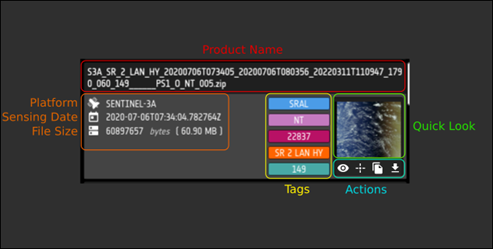
Hovering with the mouse on the footprints in the map will highlight all the footprints which the mouse pointer is inside and the products in the list, relative to those footprints, are highlighted too.

Actions on products #
It is possible to perform the following actions on products returned in the product list:
- Show product details, clicking on the eye icon.
The product detail panel is opened on the right of the product list containing the name of the product the quicklook, together with a section with the product properties section the attributes. Attributes to be shown can be configured by Administrator.

- Zoom To Map Position, clicking on the zoom icon under a product in the product list the map moves, and the relevant footprint is visualized.

- Copy URL, clicking with the left mouse button on the Copy Url button under a product in the product list. The whole link address is copied in the clipboard, so that the user can paste it elsewhere.

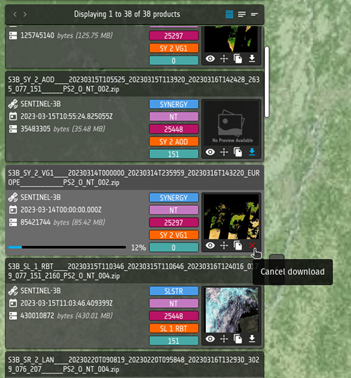
- Download, clicking on the download icon under a product in the product list. When the download starts a progress bar appears and it becomes blue when the download is ended. Clicking again the same icon a download is aborted. Parallel download can be performed according to quota configuration of the related CSC OData Service.
Tutorials #
Please find available Tutorials at the following link:


